
emenu
Featureschevron_rightMenu informationchevron_rightProduct and menu management
inventory_2Free

Product and menu management

Add hundreds of products in minutes and update prices in bulk.

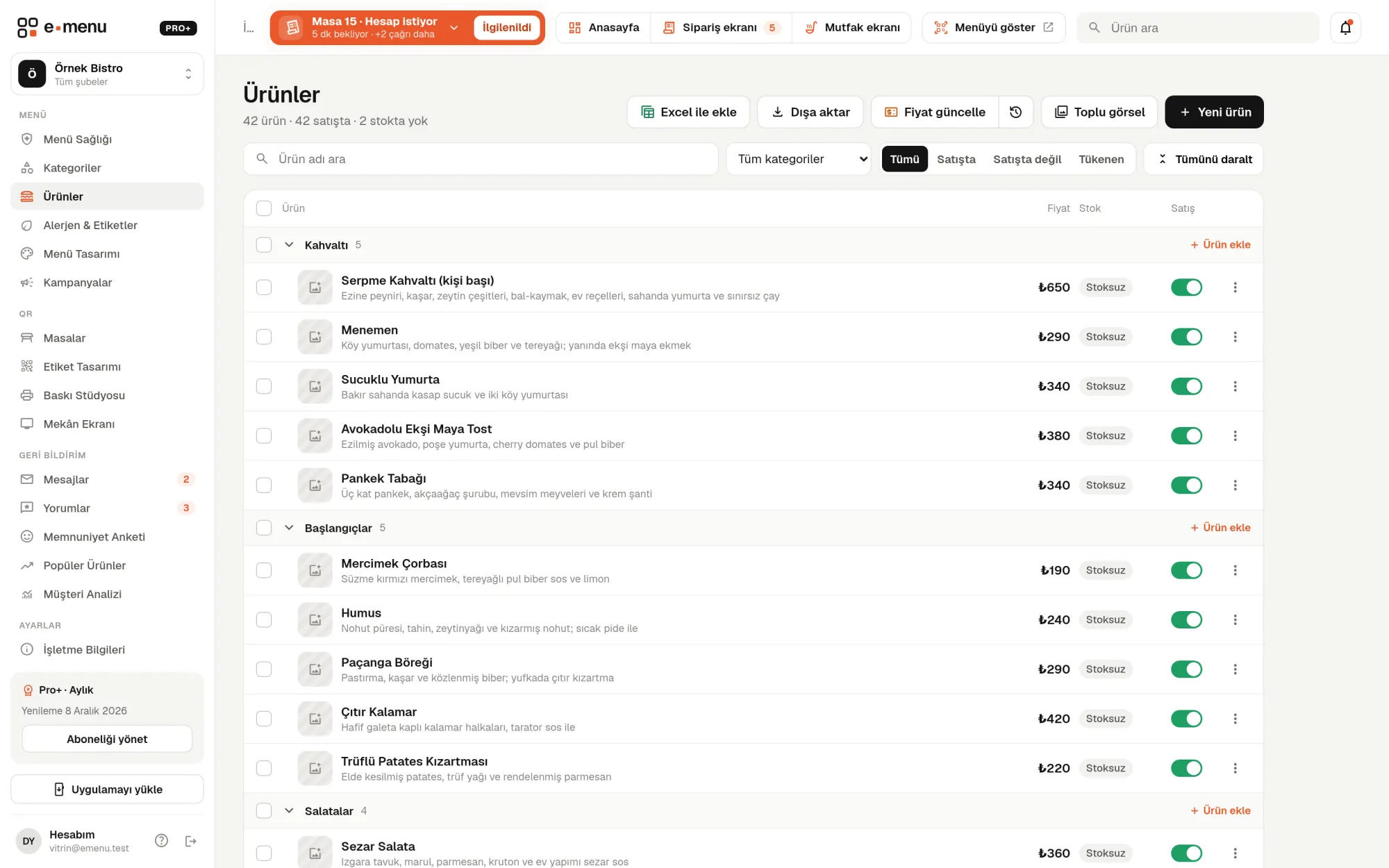
Product and menu management · emenu panel screen
Overview

What is product and menu management?

The most time-consuming part of a digital menu is entering products and keeping prices up to date. On emenu you can enter products one by one or import them in bulk from an Excel file. You drag categories to reorder them, and take products off sale, move or delete them in bulk.

When prices go up, you don’t change hundreds of products one by one. Bulk price updates apply an increase or discount by percentage or amount to the products you choose, round the prices and show a preview before applying. Every change is recorded in the price history; if something goes wrong, it’s undone with one click.

All these tools are available on the Free plan too. The Free plan has a 50-product limit; on Pro and Pro+ the number of products is unlimited.

What you can do

Product and menu management ile

check_circleCategories and subcategories, drag-and-drop ordering
check_circleUp to 6 photos per product
check_circleBulk import via Excel template (.xlsx) or CSV, CSV export
check_circleCreate categories in bulk from text
check_circleBulk hide/show, delete and move
check_circleBulk price updates by percentage or fixed amount, with rounding
check_circlePreview before applying; price history and undo
How it works

Three steps.

01
Download the template and fill in your products.
02
Upload the file and your categories and products are created.
03
Update prices in bulk and undo if needed.
Details

Product and menu management: details

Categories and subcategories

You organize your menu into main categories and subcategories. You change the order by dragging and dropping. Instead of creating many categories one at a time, you can type their names into a text box and create them all at once.

  • checkMain category, subcategory and one level below: up to 3 levels
  • checkDrag-and-drop ordering
  • checkBulk categories from text: “Soups; Main courses; Desserts” or one category per line
  • checkHide a category from the menu without deleting it

Bulk product import via Excel or CSV

You download the template from the panel, fill in your products and upload it. Before importing, the status of each row is shown: to be added, to be updated, or has errors. When you confirm, products and missing categories are created in one go.

  • checkExcel (.xlsx) or CSV, up to 1,000 rows per file
  • checkRequired columns: product name, category, price
  • checkOptional: description, stock, English name, allergens
  • checkImport into a subcategory by writing “Main courses > Grills”
  • checkUpdate or skip if a product with the same name exists
  • checkExport all products as CSV

Bulk price updates

You apply an increase or discount in one go. On the preview screen you see each product’s old and new price, and back out if it isn’t right.

  • checkScope: the whole menu, selected categories (with their subcategories) or selected products
  • checkPercentage or fixed amount; increase or discount
  • checkRounding: to the nearest, up or down; with preset steps from 0.10 to 100
  • checkSize prices are updated by the same rule
  • checkOption price differences and per-language prices can be updated too

Price history and one-click undo

Every action that changes a price (product form, bulk price update, Excel import) is saved to the price history. When you undo an action, only products still at that action’s price revert to their old price. Prices you changed by hand afterwards are kept.

Product page and bulk actions

You add photos, a description and size prices to each product. If you turn on stock tracking, the product shows as “Sold out” on the menu when stock runs out. In the product list you select several products and act on them in one go.

  • checkUp to 6 photos per product
  • checkSize prices: 2 to 8 sizes (such as small, medium, large)
  • checkSell with or without stock tracking
  • checkBulk images: upload photos and match them to products by file name
  • checkBulk actions: put on sale, take off sale, mark “Sold out”, move, delete
In the panel Product and menu management3 screens
Product and menu management · emenu panel screen
Use cases

Who uses it, and how?

01

Restaurant moving from a paper menu to a digital one

You copy your existing price list into the Excel template and upload it. Categories you write, like “Main courses > Grills”, are created automatically; rows with errors are shown before importing.

02

Price increase season

You select the Drinks category, apply a 10% increase and round prices up in steps of 5 lira. You check the preview and apply. If you picked the wrong category, you undo it from the price history.

03

Adding photos in bulk

If the files your photographer sent are named after your products, the bulk image screen matches them to products automatically. For unmatched photos, you pick the product by hand.

04

Patisserie with seasonal products

You select the summer products and take them off sale in bulk. They aren’t deleted; when the season comes back, you put them on sale again the same way.

Frequently asked questions

Product and menu management : questions

Available on all plans: Free, Pro and Pro+. On the Free plan you can add up to 50 products; Pro and Pro+ have no product limit.

Related features

monitor_heart
Menu Health
A 0–100 score that tells you what will improve your menu.
Free
egg
Allergens and tags
Mark the 14 standard allergens; guests can filter by “does not contain”.
Pro
qr_code_2
QR menu
Guests scan the QR and the menu opens on their phone, no app download needed.
Free
Free · no card needed

On the Free plan, for life.

Start freeCompare plans