
emenu
Featureschevron_rightQR menuchevron_rightQR menu
qr_code_2Free

QR menu

Guests scan the QR and the menu opens on their phone, no app download needed.

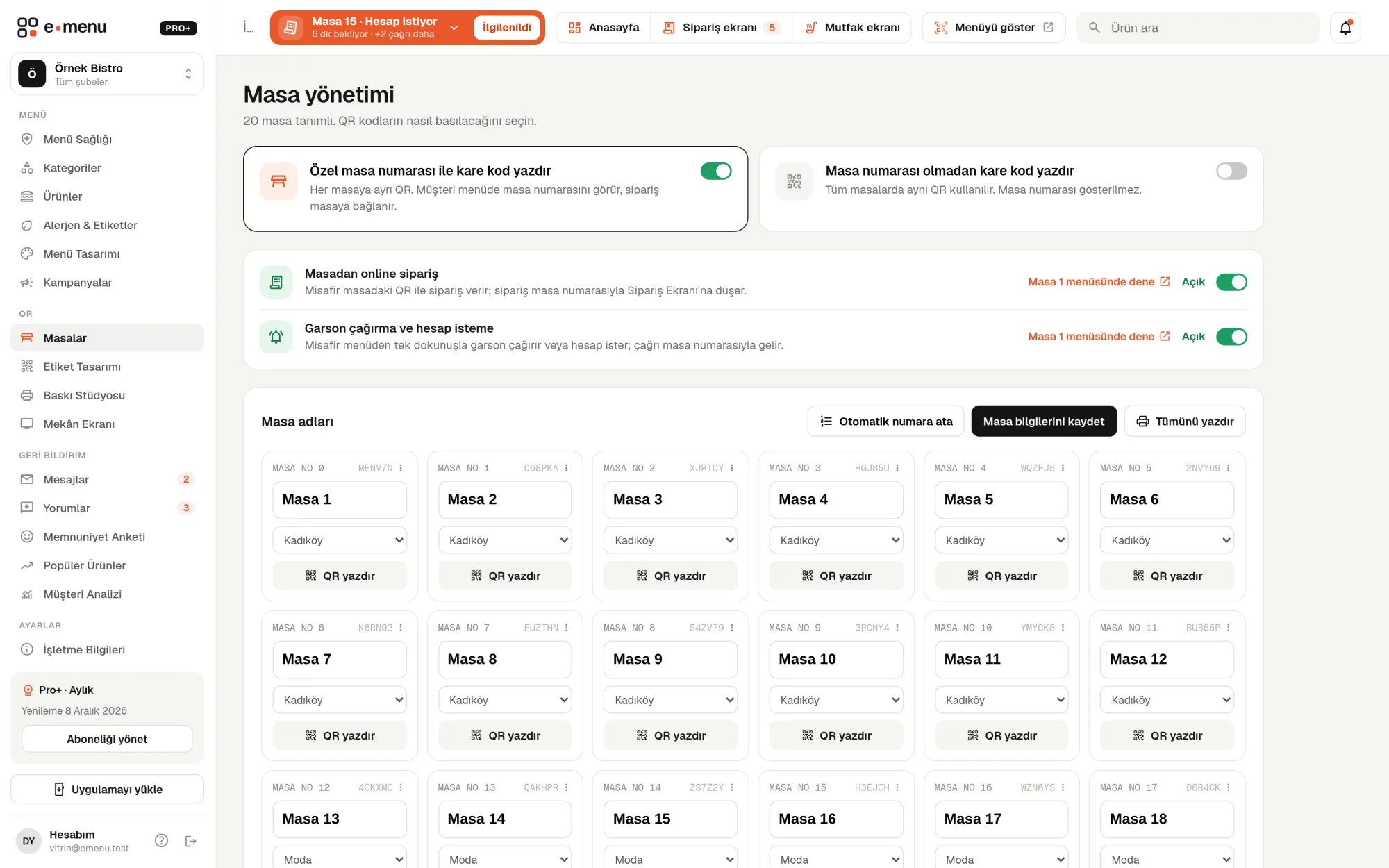
QR menu · emenu panel screen
Overview

What is a QR menu?

A QR menu is a paper menu that opens on the phone. Guests scan the QR code on the table with their phone camera, and the menu opens in the browser. No app download or sign-up needed.

With a printed menu, every price change means a reprint, and sold-out items stay on the menu. With emenu you change the product or price in the panel, and the menu is up to date the next time it opens. You never need to reprint the QR on the table.

The QR menu is included in the Free plan: use it with no time limit for up to 50 products and 5,000 QR scans a month. The same contactless menu works for cafés, restaurants, patisseries, bars and hotel restaurants.

What you can do

QR menu ile

check_circleTable QR (with table number) or a single general QR
check_circleList, grid (1–3 columns), tabbed and elegant layouts
check_circleCategory grid, subcategories with item counts, search with result counts
check_circleProduct details with photo gallery, sale price, calories and nutrition facts
check_circleOne-tap “Sold out” label
check_circleDark mode: off, automatic or on
check_circleInterface in Turkish, English, German, Russian and Arabic (right-to-left)
check_circleInstagram, Facebook, YouTube, LinkedIn, X links and a signature line
How it works

Three steps.

01
Add your products or import them from Excel.
02
Create table QR codes and print the labels.
03
Guests scan, and the menu opens on their phone.
Details

QR menu: details

A QR per table or a single general QR

You can give each table its own QR or use a single QR for the whole venue. A table QR opens the menu with the table name. When you later turn on table-linked features like waiter calls or table ordering, you know exactly which table a request came from.

  • checkAutomatic numbering “Table 1, Table 2…” for up to 300 tables at once
  • checkEach table QR gets an unguessable code
  • checkDesign QR labels with your logo, table number and colors, and print them in batches on A4
  • checkYour logo can sit in the center of the QR if you like

What does the menu look like on the guest’s phone?

The menu is designed for phone screens. Guests see the categories first, then move on to the products, or find what they want with the search box. You choose how products are laid out to suit your venue’s style.

  • checkList: rows with photos
  • checkGrid: product cards in 1, 2 or 3 columns
  • checkTabbed: main categories as tabs at the top
  • checkElegant: like a printed menu, text-focused with no photos
  • checkSubcategories show item counts, and search shows result counts
  • checkDark mode: off, on, or automatic based on the phone’s setting

Product details and the “Sold out” label

When a guest taps a product, its detail page opens: photos, description and price appear here. You mark a finished product as “Sold out” with one tap in the panel; the product stays on the menu, but guests can see it has run out. On the Pro plan, discounted prices, calories and nutritional values also appear on this page.

  • checkUp to 6 photos per product
  • checkSize prices: such as small, medium, large
  • checkWith stock tracking on, “Sold out” appears automatically when stock runs out
  • checkShare a product link

Menu interface in 5 languages

Fixed text such as the search box, buttons and day names can appear in Turkish, English, German, Russian or Arabic. In Arabic, the menu flows right to left. This setting is available on every plan; translating your product and category names into other languages is done with the multi-language feature in the Pro plan.

Social media, signature and link preview

At the bottom of the menu, you link to your Instagram, Facebook, YouTube, LinkedIn and X accounts. You can replace the signature line at the bottom (by default “Enjoy your meal”) with your own words. When the menu link is shared on WhatsApp or social media, a preview appears with your venue’s name.

In the panel QR menu2 screens
QR menu · emenu panel screen
Use cases

Who uses it, and how?

01

Neighborhood café, 40-item menu

If your menu has fewer than 50 products, the Free plan is enough. You enter your products and place a single general QR on the counter and tables. When a price changes, you don’t print a new café menu; you fix it in the panel.

02

Restaurant with 20 tables

You number the tables automatically and print each one its own QR label. Whichever table a guest scans from, the menu opens with that table’s name. When you turn on waiter calls later, calls arrive with the right table number.

03

Café by day, bar by night

You set dark mode to “automatic”; guests whose phones use a dark theme see the menu in dark. In the evening you mark items that run out as “Sold out” in the panel, with no need to delete them from the menu.

04

Patisserie with great photos

You choose the 2-column grid layout and add a few photos to each product. Guests see the cakes on their phone without walking to the display case, tap a product and swipe through the photos.

Frequently asked questions

QR menu : questions

The QR menu is in the Free plan and carries over unchanged to Pro and Pro+. The Free plan has a limit of 50 products and 5,000 QR scans per month; on Pro and Pro+ both are unlimited.

Related features

palette
Menu design
Make your menu look like your brand with 6 ready-made designs, 4 layouts and 30 fonts.
Free
translate
Multiple languages and auto-translation
Translate your menu into any language with one click, and review before applying.
Pro
print
Print Studio
Table QR labels, printed menus, buffet cards and Wi-Fi cards, all from your menu.
Free
Free · no card needed

On the Free plan, for life.

Start freeCompare plans