
emenu
Featureschevron_rightQR menuchevron_rightMultiple languages and auto-translation
translatePro

Multiple languages and auto-translation

Translate your menu into any language with one click, and review before applying.

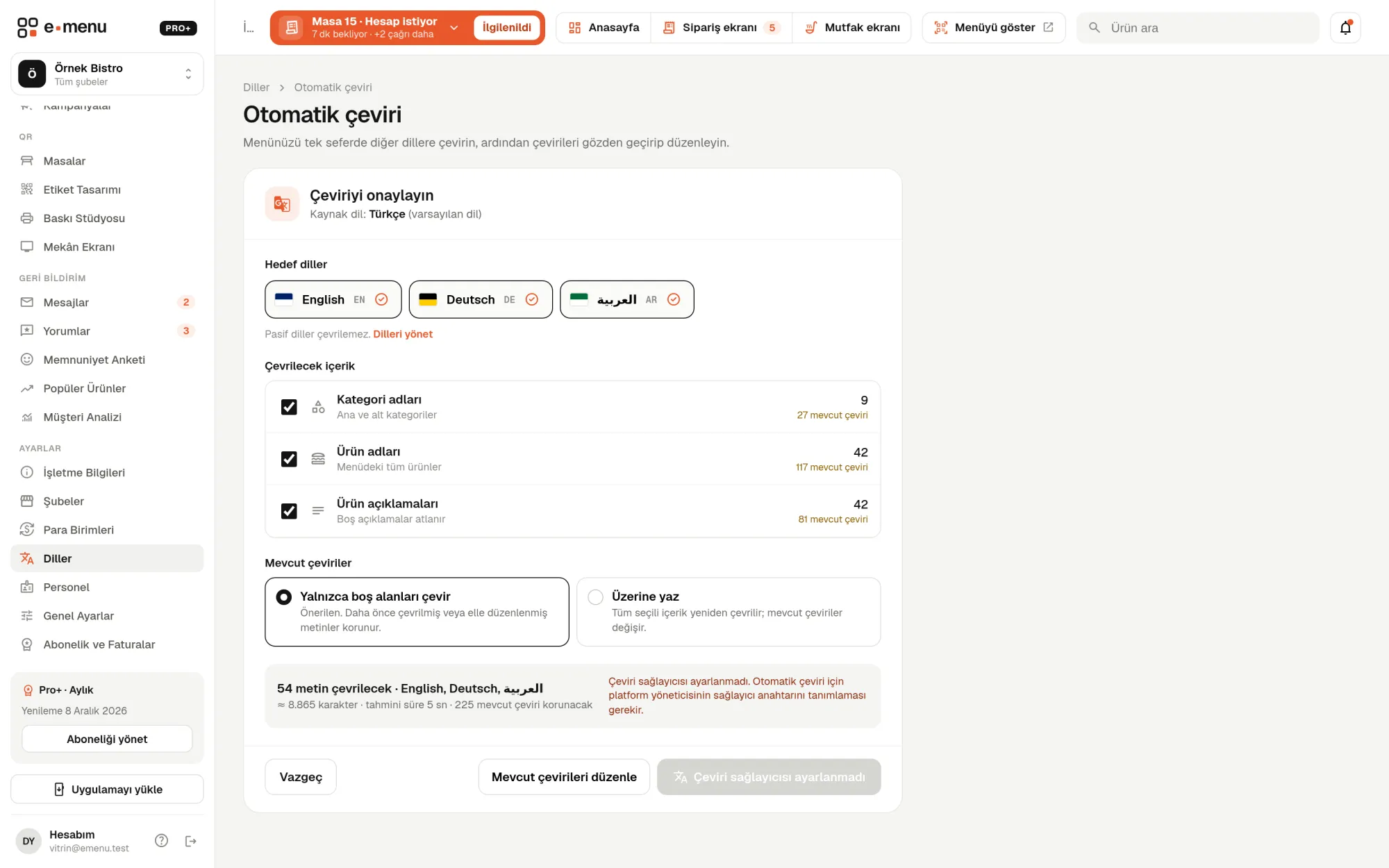
Multiple languages and auto-translation · emenu panel screen
lockThis feature is in ProOn the Free plan? Upgrade, or try it free for 14 days with no card.See plans
Overview

What are multiple languages and auto-translation?

Foreign guests struggle to understand dishes on a Turkish menu; they ask the waiter and service slows down. With multiple languages, you publish your category names, product names and descriptions in other languages too. Guests pick their language from the language selector on the menu.

You don’t have to write everything one by one. Auto-translation translates your menu into the languages you choose in one go. The results aren’t written to the menu right away: you review them first, correct them if needed, then apply.

Multiple languages are available in Pro and also in Pro+. On the Free plan, the digital menu is published in one language, your default language.

What you can do

Multiple languages and auto-translation ile

check_circleAdd unlimited languages
check_circleCategory names, product names and descriptions are translated automatically
check_circleTranslations are reviewed before they are applied
check_circleEvery translation can be edited by hand
check_circleDifferent prices and currencies per language
check_circleMenu interface in 5 languages; right-to-left for Arabic
How it works

Three steps.

01
Add a new language to your menu from the panel.
02
Start auto-translation with one click.
03
Review the translations and apply them.
Details

Multiple languages and auto-translation: details

Unlimited languages, right-to-left support

Add as many languages to your menu as you like. You choose the text direction for each language; for right-to-left languages like Arabic, the menu flows right to left too. You can deactivate a language to remove it from the menu without deleting it.

  • checkNo limit on the number of languages
  • checkLeft-to-right or right-to-left text direction
  • checkActivate or deactivate a language
  • checkChoose which language the QR menu opens in first

One-click auto-translation (DeepL)

Automatic menu translation is done with DeepL, a machine translation service. You choose which languages and which content to translate; the translation runs in the background and you track its progress in the panel.

  • checkTranslated content: category names, product names and product descriptions
  • checkFill in only missing translations or overwrite existing ones
  • checkEnglish, German, Russian, Arabic, French, Spanish, Italian, Chinese, Japanese, Korean and more
  • checkCancel a translation in progress

Review before applying to the menu

When the translation finishes, you see each text alongside its source. Texts the translation tool returned unchanged (such as special product names or brand names) are flagged for you to check. You edit any line you want to correct and apply them all to the menu in one go.

Manual translation and price per language

On the product edit page, each language has its own tab. You can write the translation by hand here or change the auto-translation. In the same tab you also enter the price and currency to show on that language’s menu; if you leave the price empty, the regular selling price is shown.

The menu interface speaks the guest’s language too

Fixed text such as the search box, buttons and day names is ready in Turkish, English, German, Russian and Arabic. If a guest picks one of these languages, the menu interface switches to it as well. If they pick another language, product and category names are translated while fixed text stays in the menu’s starting language.

In the panel Multiple languages and auto-translation2 screens
Multiple languages and auto-translation · emenu panel screen
Use cases

Who uses it, and how?

01

Café in a tourist area

You add English, German and Russian and start auto-translation. You review the results and apply them. Guests read the menu in their own language and don’t have to ask the waiter about every item.

02

Hotel restaurant hosting Arabic-speaking guests

You add Arabic with right-to-left text direction. When a guest picks Arabic, both the product names and the menu buttons appear in Arabic, right to left.

03

Restaurant with a frequently changing menu

When you add new products, you run the translation to fill in only what’s missing. Translations you corrected by hand are kept; only the new products are translated.

04

Regional dish names

You may want to keep names like İskender or künefe as they are. If the translation tool leaves these names unchanged, the line is flagged for review; you can keep the name in Turkish and publish the description in the foreign language.

Frequently asked questions

Multiple languages and auto-translation : questions

The Pro plan, and Pro+ as well. On the Free plan the menu is published only in the default language, but the menu’s fixed text is ready in 5 languages on every plan.

Related features

currency_exchange
Multiple currencies
Foreign guests see prices in their own language and a currency they know.
Pro
egg
Allergens and tags
Mark the 14 standard allergens; guests can filter by “does not contain”.
Pro
qr_code_2
QR menu
Guests scan the QR and the menu opens on their phone, no app download needed.
Free
Pro · 99 ₺ / month + VAT

Grow your menu with Pro.

Try free for 14 daysCompare plans