
emenu
Featureschevron_rightDesign and printchevron_rightPrint Studio
printFree

Print Studio

Table QR labels, printed menus, buffet cards and Wi-Fi cards, all from your menu.

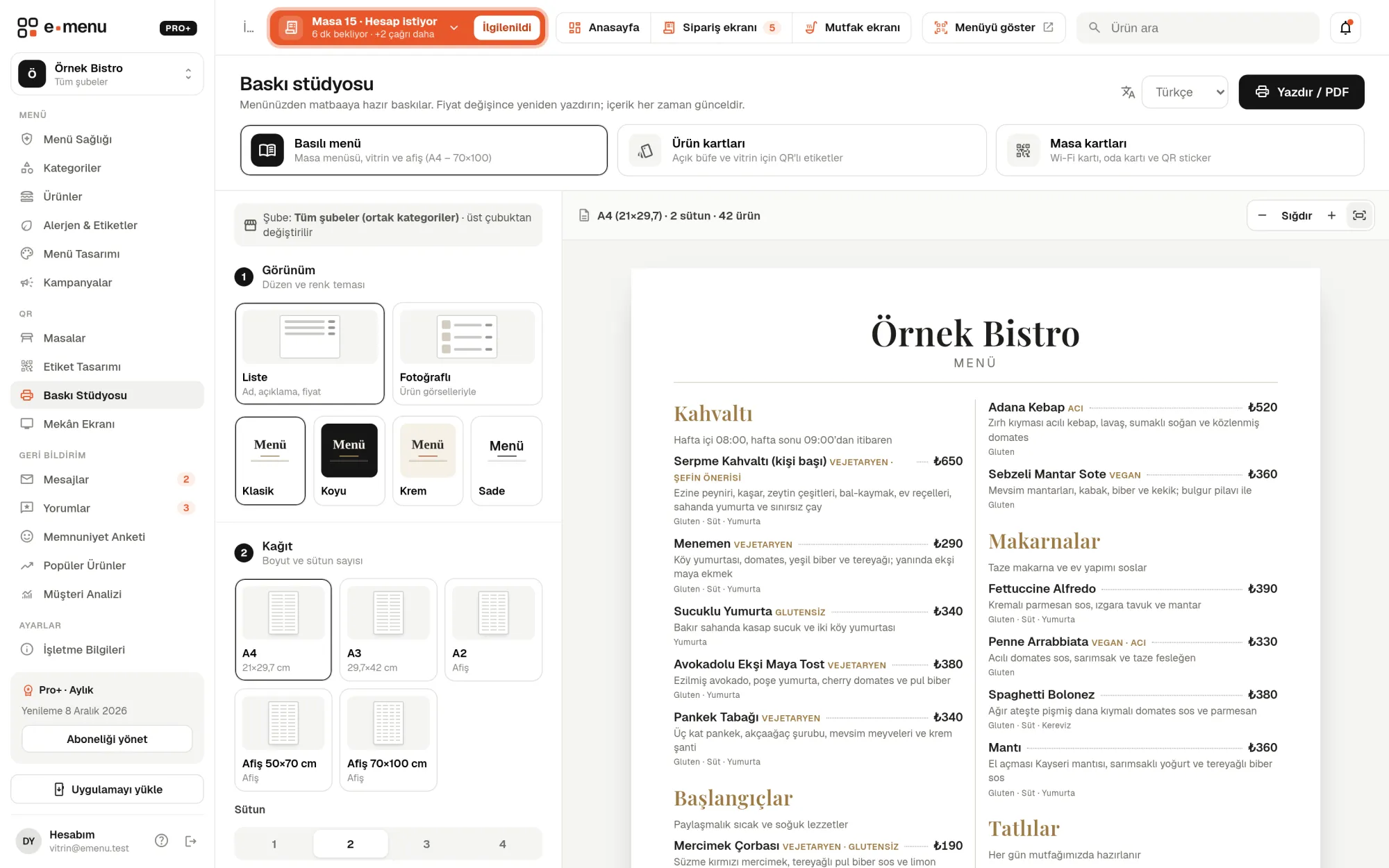
Print Studio · emenu panel screen
Overview

What is Print Studio?

Print Studio is a panel tool that creates printed materials from the information on your QR menu. Table QR labels, printed menus, buffet item cards, Wi-Fi cards, room cards and stickers all come from one place. You don’t retype product names, prices or descriptions; they all come from your menu.

Businesses that switch to a digital menu don’t give up paper entirely: they still need QR labels on tables, posters on the door and item cards at the buffet. Making these separately in a graphics program takes time, and they go out of date when prices change. In Print Studio, you just change the price in the panel and print the same design again.

You send the output to your printer from the browser’s print dialog, or choose “Save as PDF” to send it to a print shop. QR codes are generated in vector format that doesn’t degrade when enlarged, so they stay sharp even at poster size.

What you can do

Print Studio ile

check_circleQR labels: A3–A8 or custom size (4–50 × 4–70 cm)
check_circle3 label templates, 30 ready-made backgrounds or your own image
check_circleLogo in the center of the QR; reorder and hide elements
check_circleLabels for all tables on A4 with cut lines
check_circlePrinted menu: A4, A3, A2, 50×70, 70×100; Classic, Dark, Cream, Plain themes
check_circleBuffet item cards: Editorial, Atelier, Compact; 6 sizes
check_circleThe card’s QR opens the buffet page in the phone’s language
check_circleWi-Fi cards, room cards, round and square stickers
check_circlePrint from the browser or save as PDF
How it works

Three steps.

01
Choose the material type and size.
02
Set the theme, categories and elements.
03
Print or save as PDF.
Details

Print Studio: details

QR labels for tables

You design a QR label for each table that opens with its own number; you can define from 1 to 300 tables. Labels for all tables are laid out on A4 pages with cut lines and printed in one go.

  • checkSize: A3 to A8 or custom (4–50 × 4–70 cm)
  • check3 templates: dark, light, orange
  • check30 ready-made backgrounds (dark, light, wood, pattern, colorful) or your own image
  • checkLogo in the center of the QR
  • checkReorder or hide the logo, table number, QR and description text

Printed menu: from A4 to a 70×100 poster

You create a paper menu for tables, a window menu or an entrance poster. If your menu has several languages, you pick the language to print; if you have several branches, you pick the branch.

  • checkPaper: A4, A3, A2, 50×70 and 70×100 cm posters
  • check4 themes: Classic, Dark, Cream, Plain
  • checkPhoto or list view, number of columns
  • checkCategory and product selection
  • checkOptional: product descriptions, allergen information, sale prices, menu QR code
  • checkOn posters, text size adjusts to the page

Product cards for buffets and display cases

You create a QR card to place in front of each item at the buffet or in the display case. The card’s QR opens the product’s price-free buffet page: name, ingredients, allergens and nutrition facts appear in the phone’s language. You can also link the QR to the product’s regular menu page.

  • check3 templates: Editorial, Atelier, Compact
  • check6 sizes: A5, A6, postcard, square, small (10×7), mini (8.5×5.5 cm)
  • checkBackground, text and accent colors
  • checkPrint or hide the price and short description
  • checkAlso print the product name in your menu’s other languages
  • checkA4 layout with cut lines

Wi-Fi cards, room cards and stickers

In the table cards tab, you create the small printed pieces guests need. When you choose a quantity, you see how many fit on one A4 page.

  • checkWi-Fi card (A6, 10×7 table card, 9×9 square): phones that scan the QR join the network
  • checkRoom card (A5, A6): menu QR and a short note for hotel rooms
  • checkStickers: round 8 and 6 cm, square 9×9 and 7×7 cm
In the panel Print Studio4 screens
Print Studio · emenu panel screen
Use cases

Who uses it, and how?

01

Newly opened café

The café designs labels for its twelve tables with a wood background and puts its logo in the center of the QR. All labels are laid out on A4 with cut lines, printed on the office printer and cut.

02

Hotel restaurants and buffets

The hotel prints an Editorial-template product card for every buffet dish. When foreign guests scan the card, they see the dish’s ingredients and allergens in their own language. Room cards with the menu QR go in the rooms too.

03

Patisserie with a display case

The patisserie prints a small product card for each cake in the display case, with the price on the card. It also hangs an A3 printed menu with photos on the glass door.

04

Restaurant updating its prices

The restaurant updates its prices in the panel. The QR menu changes instantly; it reprints the 50×70 poster on the door with the same design and sends it to the print shop as a PDF.

Frequently asked questions

Print Studio : questions

All plans, including Free. The Wi-Fi details needed for the Wi-Fi card and allergen information on printed materials are Pro plan features.

Related features

tv
Venue Screen
A TV slideshow fed by your menu, so you don’t need to create separate content.
Free
palette
Menu design
Make your menu look like your brand with 6 ready-made designs, 4 layouts and 30 fonts.
Free
qr_code_2
QR menu
Guests scan the QR and the menu opens on their phone, no app download needed.
Free
Free · no card needed

On the Free plan, for life.

Start freeCompare plans