
emenu
Featureschevron_rightDesign and printchevron_rightVenue Screen
tvFree

Venue Screen

A TV slideshow fed by your menu, so you don’t need to create separate content.

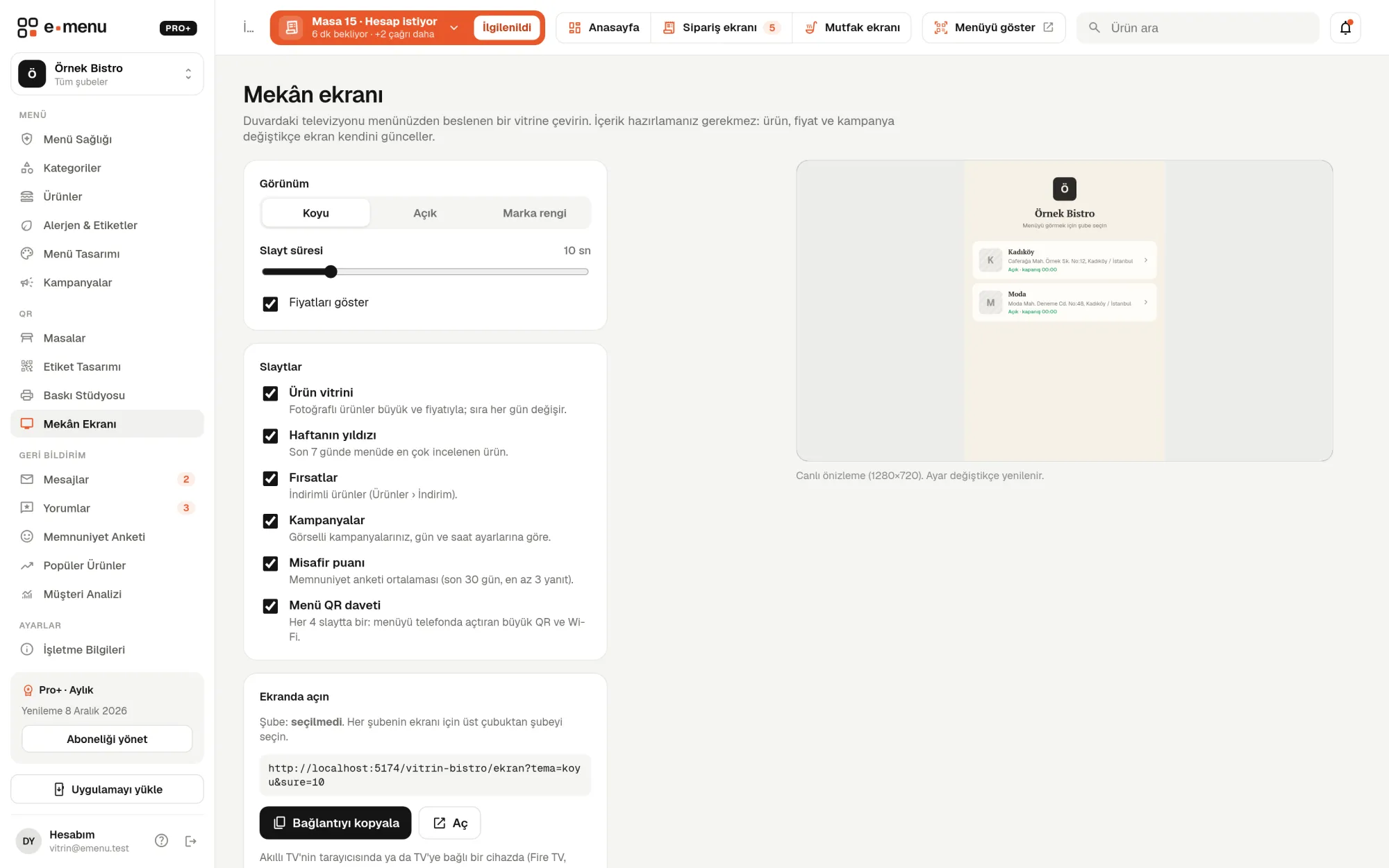
Venue Screen · emenu panel screen
Overview

What is Venue Screen?

Venue Screen is a slideshow that turns the TV in your venue into a digital menu board. It takes its content from your QR menu: the product’s name, photo, description and price on screen match the menu. No separate design program, USB stick or new graphics with every price change.

In cafés and restaurants, the TV on the wall is often either off or showing something unrelated to the business. Venue Screen uses that space to promote your products and point guests to the QR menu on the table. When you change a product in the panel, the screen updates itself shortly after.

The feature is on the Free plan. The screen doesn’t count as a visit and doesn’t use up your monthly QR scan limit on the Free plan.

What you can do

Venue Screen ile

check_circleProduct showcase
check_circleStar of the week: the most viewed product in 7 days
check_circleDeals and campaigns
check_circleGuest rating
check_circleQR and Wi-Fi invitation
check_circleHide prices and show per branch
How it works

Three steps.

01
Choose the slide types.
02
Set the theme and slide duration.
03
Open the screen address in the TV’s browser.
Details

Venue Screen: details

Six slide types

You choose which slides rotate on the screen. A slide with nothing to show is skipped automatically; for example, if you have no discounted products, the Deals slide doesn’t appear. Products marked “Sold out” aren’t included in slides.

  • checkProduct showcase: products with photos shown large with their price; the order changes every day
  • checkStar of the week: the most viewed product on the menu in the last 7 days
  • checkDeals: discounted products, with old and new prices
  • checkCampaigns: your image campaigns, following their day and time settings
  • checkGuest rating: the satisfaction survey average for the last 30 days and a “Rate us too” QR
  • checkMenu QR invitation: a large QR that opens the menu on the phone; plus the Wi-Fi name and password, if set

Theme, slide duration and price display

There are three themes so the screen fits your venue. You set slide duration in the panel between 5 and 30 seconds. The menu QR invitation appears after every four slides, so guests see the QR often. In places where you don’t want to show prices, like a hotel lobby or buffet, you hide them with a single option.

  • checkDark theme
  • checkLight theme
  • checkBrand color theme: with your menu’s accent color
  • checkLogo, venue name and clock in the bottom bar
  • check“Show prices” option

How do I open it on a TV?

The Venue Screen page in the panel generates a link based on your settings. You open this link in the smart TV’s browser or on a device connected to the TV that can run a browser (media player, mini PC). Double-click the screen to go full screen; the mouse cursor hides after a few seconds of inactivity. While changing settings, you see a 1280×720 live preview in the panel.

Keeps itself up to date

The screen refreshes menu data every 5 minutes and fully reloads the page every 30 minutes. That way a new price, a “Sold out” label or a new campaign reaches the screen without you doing anything. The star of the week and guest rating slides need enough data to appear: the product must have been viewed at least 3 times in the last 7 days, and the survey must have at least 3 responses in the last 30 days.

Slides by plan

Venue Screen is available on every plan. The product showcase, star of the week and menu QR invitation work on the Free plan too. Some slides draw on Pro plan features; if those features aren’t enabled, the related slide is skipped.

  • checkDeals slide: time-limited discounts (Pro)
  • checkCampaigns slide: Campaigns module (Pro)
  • checkGuest rating slide: satisfaction survey (Pro)
  • checkWi-Fi details on the QR slide: venue information (Pro)
  • checkA separate screen link for each branch: multiple branches (Pro)
In the panel Venue Screen1 screens
Venue Screen · emenu panel screen
Use cases

Who uses it, and how?

01

Coffee shops and patisseries

The product showcase rotates on the TV behind the counter; dessert photos and prices are large enough to read from a distance. When a price changes, you just update the product in the panel and the screen refreshes itself.

02

Hotel lobbies and buffets

You hide prices and show only products and the menu QR. When guests scan the QR, the menu opens on their own phone. On the Pro plan, the same slide also shows the Wi-Fi name and password.

03

Bar running evening campaigns

On the Pro plan, a campaign you schedule for 18:00–20:00 rotates on the TV only during those hours, just like on the menu. Discounted drinks appear on the Deals slide with old and new prices.

04

Restaurant chain with three branches

You get a separate screen link for each branch. The branch name appears in the bottom bar; branch-specific prices apply, and products you hid at that branch don’t appear. Multiple branches are in the Pro plan.

Frequently asked questions

Venue Screen : questions

It’s on the Free plan, so it’s available on every plan. The deals, campaign and guest rating slides and branch-specific screens work with Pro plan features.

Related features

print
Print Studio
Table QR labels, printed menus, buffet cards and Wi-Fi cards, all from your menu.
Free
campaign
Campaigns
Show campaigns on your menu in the right place, at the right time.
Pro
sentiment_satisfied
Satisfaction survey
Measure what your guests think, NPS included.
Pro
Free · no card needed

On the Free plan, for life.

Start freeCompare plans