emenu
Featureschevron_rightGuest relationschevron_rightSatisfaction survey
sentiment_satisfiedPro

Satisfaction survey

Measure what your guests think, NPS included.

Satisfaction survey · emenu panel screen
lockThis feature is in ProOn the Free plan? Upgrade, or try it free for 14 days with no card.See plans
Overview

What is the satisfaction survey?

The satisfaction survey is a short form where guests rate their experience with a few questions from the QR menu. You decide the questions: star rating, 0–10 recommendation question, multiple-choice question or free comment. Answers turn into a report in the panel.

Paper survey cards stay on the table; even when filled in, nobody counts them and enters them into a spreadsheet. A survey inside the menu opens on the phone the guest is already holding, and every answer is added to the report instantly. You clearly see which week, which branch and which table saw a drop in score.

The survey also calculates NPS. NPS (Net Promoter Score) shows how willing guests are to recommend you, on a scale from −100 to +100. The satisfaction survey is in the Pro and Pro+ plans.

What you can do

Satisfaction survey ile

check_circleStar (1–5), 0–10 recommendation (NPS), multiple-choice and comment questions
check_circle6 ready-made questions; branch-specific questions and question translations
check_circleOn the menu home page or after an order
check_circleAnswers are anonymous; once a day per device
check_circleAverage score, NPS, distributions, weekly trend
check_circleBreakdown by branch and table; export that opens in Excel
How it works

Three steps.

01
Pick ready-made questions or write your own.
02
Decide where the survey is shown.
03
Track and export the report.
Details

Satisfaction survey: details

4 question types and 6 ready-made questions

When you first open the survey, it comes with 6 ready-made questions: overall satisfaction, taste, service, value for money, the recommendation question and “Anything you’d like to add”. You can edit them, reorder them, make them required or add new ones. If you delete a question that has answers, it’s archived, so past reports stay intact.

  • checkStar (1–5): rating questions such as overall satisfaction, taste, service
  • checkRecommendation (0–10): the NPS question
  • checkSingle choice: up to 10 options, e.g. “How did you hear about us?”
  • checkComment: the guest’s free-form feedback

Where does the survey appear on the menu?

The survey starts switched off; you review the questions and turn it on in the menu with one button. The invitation card asking guests to take the survey can appear in two places, and you can turn each on or off separately. If you use the My own design layout, you can also place the survey block anywhere on the page.

  • check“Rate your experience” card on the menu home page
  • check“How was your order?” card in order tracking after the order is served (table ordering, Pro+)
  • checkSurvey title, intro text and thank-you text in your own words

Anonymous answers, once a day per device

Guests aren’t asked for a name, phone or email; answers are anonymous. One answer per day is accepted from the same device, so no one can submit scores over and over. Once a guest finishes the survey, the invitation card doesn’t appear on the menu again that day.

Report: average score, NPS and weekly trend

The survey report in the panel shows the last 7, 14, 30, 90 or 365 days. If you have several branches, you can filter the report by a single branch.

  • checkNumber of answers and average score for star questions
  • checkNPS: the percentage of 0–6 scores subtracted from the percentage of 9–10 scores
  • checkScore or option distribution for each question
  • checkWeekly trend: number of answers and average score
  • checkBreakdown by branch and table, latest comments
  • checkCSV export that opens in Excel: one row per answer, one column per question

Branch-specific questions and question translations

You can ask a question at all branches or only one; guests see the question set of whichever branch they’re at. If your menu has several languages, the survey title, questions and options are translated too. You can translate with one click via DeepL (an automatic translation service) and then correct by hand.

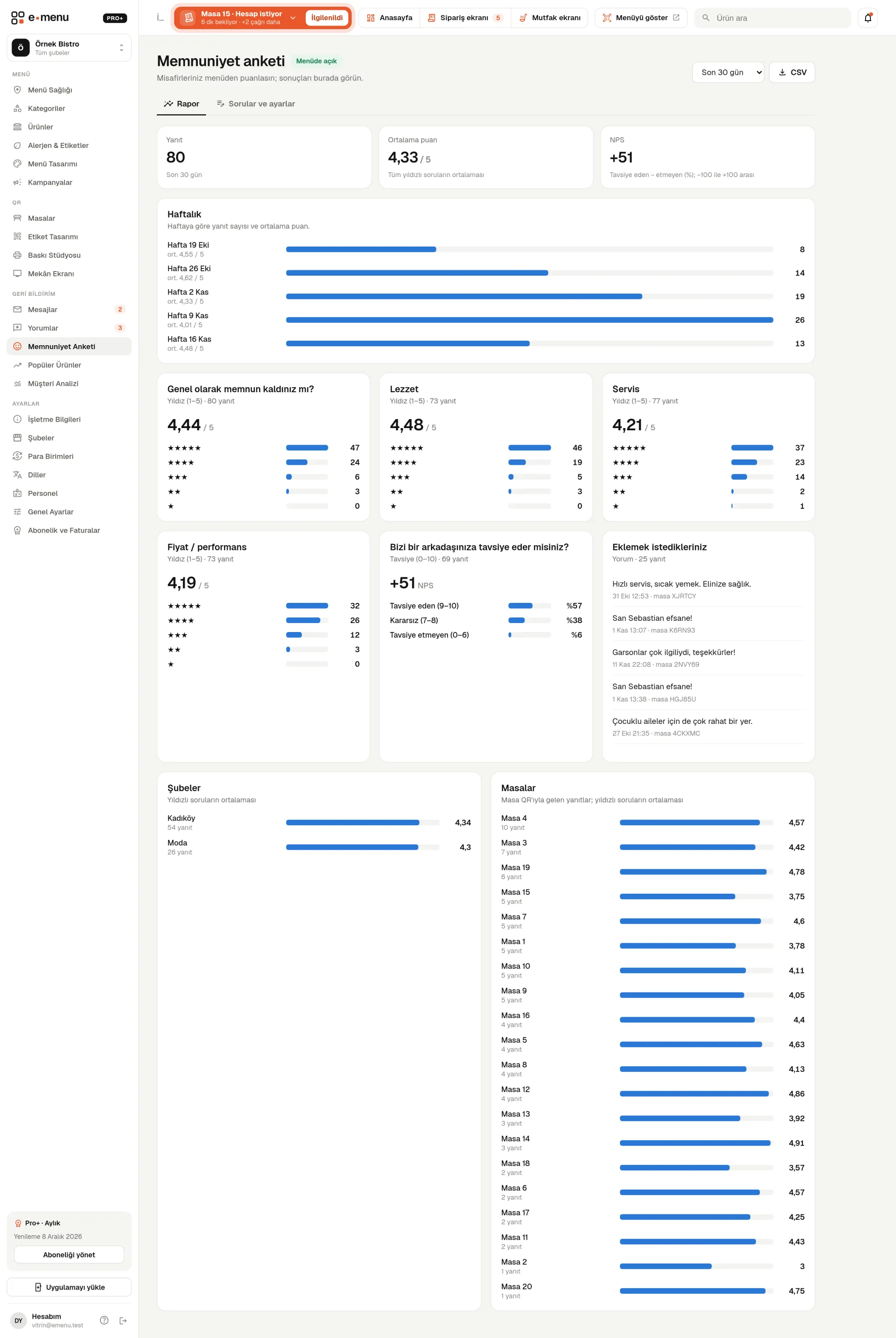
In the panel Satisfaction survey2 screens
Satisfaction survey · emenu panel screen
Use cases

Who uses it, and how?

01

Neighborhood café updating its prices

After updating menu prices, the café tracks the “Value for money” score in the weekly trend over the following weeks. If the score drops, it works out from the comments which products to adjust.

02

Restaurant chain with three branches

It asks the same questions at all three branches and filters the report by branch. It spots the branch where the service score stays low and talks to that branch’s team; it adds a question just for the newly opened branch.

03

Bistro taking orders from the table

At a bistro on Pro+, guests see a “How was your order?” card on the order tracking screen after their order is served. The answer comes while the experience is still fresh.

04

Restaurant in a tourist area

A restaurant whose menu is also published in English, German and Russian auto-translates its survey questions into those languages. Foreign guests fill in the survey in their own language, and all answers are gathered in one report.

Frequently asked questions

Satisfaction survey : questions

Pro and Pro+. The Free plan has no survey; you can use it during the free trial.

Related features

reviews
Product reviews
Guests write reviews; they go live once you approve them, and you can reply.
Pro
monitoring
Analytics
See what guests do on your menu.
Pro
tv
Venue Screen
A TV slideshow fed by your menu, so you don’t need to create separate content.
Free
Pro · 99 ₺ / month + VAT

Grow your menu with Pro.

Try free for 14 daysCompare plans