
emenu
Featureschevron_rightDesign and printchevron_rightMy own design
dashboard_customizePro

My own design

Build your menu pages from scratch with blocks.

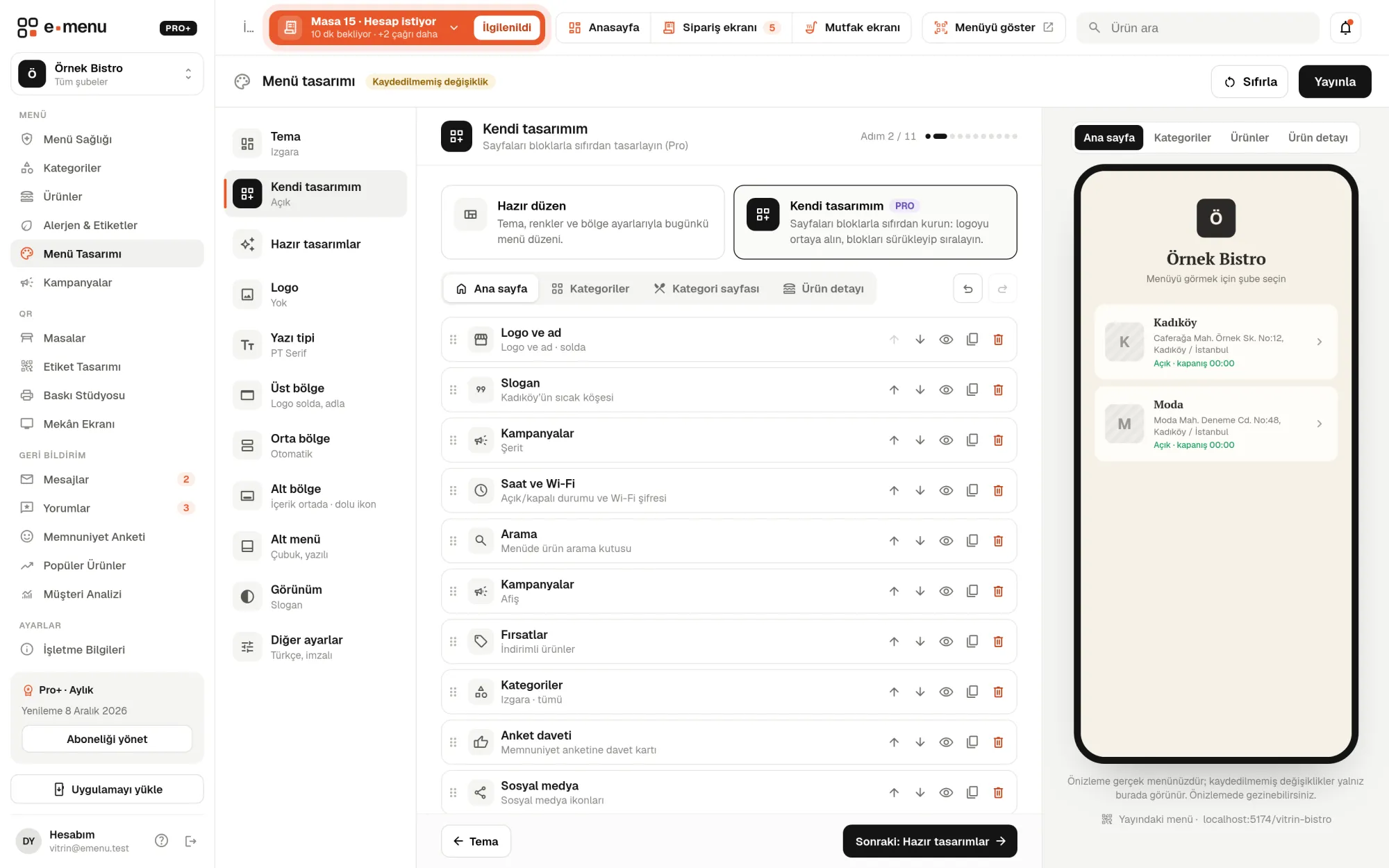
My own design · emenu panel screen
lockThis feature is in ProOn the Free plan? Upgrade, or try it free for 14 days with no card.See plans
Overview

What is My own design?

My own design is an editor that lets you build your digital menu’s pages with blocks instead of a ready-made layout. You stack pieces like your logo, cover image, campaigns, featured products and categories, and drag them into order. No coding or designer needed.

Ready-made designs are enough for most businesses. But some want the campaign first on the home page, then the most viewed products, and a WhatsApp button at the bottom. My own design leaves that order and look up to you.

You design four pages separately: the home page, categories, product list and product details. A page you don’t add blocks to keeps its ready-made layout; you can change just the home page and leave the rest as it is.

What you can do

My own design ile

check_circleHome page, categories, product list and product details are built with blocks
check_circleLogo, cover, slogan, text, image, button, divider
check_circleHighlights, deals, campaigns, products (5 views), gallery
check_circleVariants, allergens, nutrition facts, reviews, survey, call waiter
check_circleAlignment, spacing, background, corners, shadow and half width on every block
check_circleDrag-and-drop ordering, Ctrl+Z / Ctrl+Y
check_circle3 ready-made home page templates: Centered logo, Cover, Showcase
check_circleButtons link to a menu page, a web address, a phone number or WhatsApp
How it works

Three steps.

01
Start with a ready-made template.
02
Add blocks and drag to reorder them.
03
Preview and publish.
Details

My own design: details

33 block types

The blocks available depend on the page; each page can have up to 40 blocks. Product, category, campaign and review blocks pull their content from your menu. When you change a price in the panel, it changes in your design too.

  • checkBrand and layout: logo and name, heading, cover (image or video), slogan, text, image, button, spacer, divider
  • checkMenu: categories (list, grid, chips, cards), category heading, subcategories, products, highlights, deals, campaigns, search, filters
  • checkProduct details: photo gallery, product title, description, size prices, tags, allergens, nutrition facts, order options, reviews, share
  • checkGuest: venue information, survey, call waiter, social media icons, signature line

Appearance settings on every block

Besides a block’s content, you set its appearance too. The font and colors you chose in Menu design are used in blocks as well.

  • checkAlignment: left, center, right
  • checkTop, bottom and side spacing
  • checkBackground: solid color, gradient or image
  • checkCorner radius and shadow
  • checkHalf width: place two blocks side by side

Buttons and links

Button and image blocks can link somewhere: a category, a product, another menu page (deals, survey, venue information, call waiter, cart), a web address, your phone number or WhatsApp. For example, a “Call to book” button starts a call right from the guest’s phone.

Start with a template, edit freely

There are three ready-made home page templates: Centered logo (large logo, categories as cards), Cover (logo and name over a cover image) and Showcase (featured products and deals up front). You can also convert your current ready-made layout into blocks and edit from there.

  • checkReorder by drag and drop or up/down
  • checkHide, duplicate and delete blocks
  • checkUndo (Ctrl+Z) and redo (Ctrl+Y)
  • checkLive preview; changes stay in draft until you publish

Looks right on every phone

Blocks stack vertically; there is no pixel-by-pixel positioning. So the design looks right on small and large screens without shifting. Two half-width blocks sit side by side.

In the panel My own design1 screens
My own design · emenu panel screen
Use cases

Who uses it, and how?

01

Café that wants to highlight its campaign

The café picks the Showcase template: a campaign banner at the top, then the four most viewed products, then deals and categories. Guests see the campaign of the week as soon as they open the menu.

02

Restaurant that takes reservations

The restaurant adds “Message us on WhatsApp” and “Call to book” buttons at the bottom of the home page. Guests who scan the table QR can reach it with one tap for their next visit.

03

Cocktail bar

The bar starts with the Cover template, puts a short video in the cover area and adds a slogan that changes line by line below it. The menu captures the bar’s atmosphere on the first screen.

04

Hotel restaurant

The hotel moves allergens and nutrition facts right below the description on the product detail page and puts reviews at the end. On the home page, it adds opening hours with the venue information block.

Frequently asked questions

My own design : questions

Pro and Pro+. On the Free plan you can open the editor, prepare a draft and preview it; publishing it on the menu requires Pro.

Related features

palette
Menu design
Make your menu look like your brand with 6 ready-made designs, 4 layouts and 30 fonts.
Free
language
Custom domain
Have your menu open on your own domain, like menu.yourvenue.com.
Pro
campaign
Campaigns
Show campaigns on your menu in the right place, at the right time.
Pro
Pro · 99 ₺ / month + VAT

Grow your menu with Pro.

Try free for 14 daysCompare plans