
emenu
Featureschevron_rightGuest relationschevron_rightCampaigns
campaignPro

Campaigns

Show campaigns on your menu in the right place, at the right time.

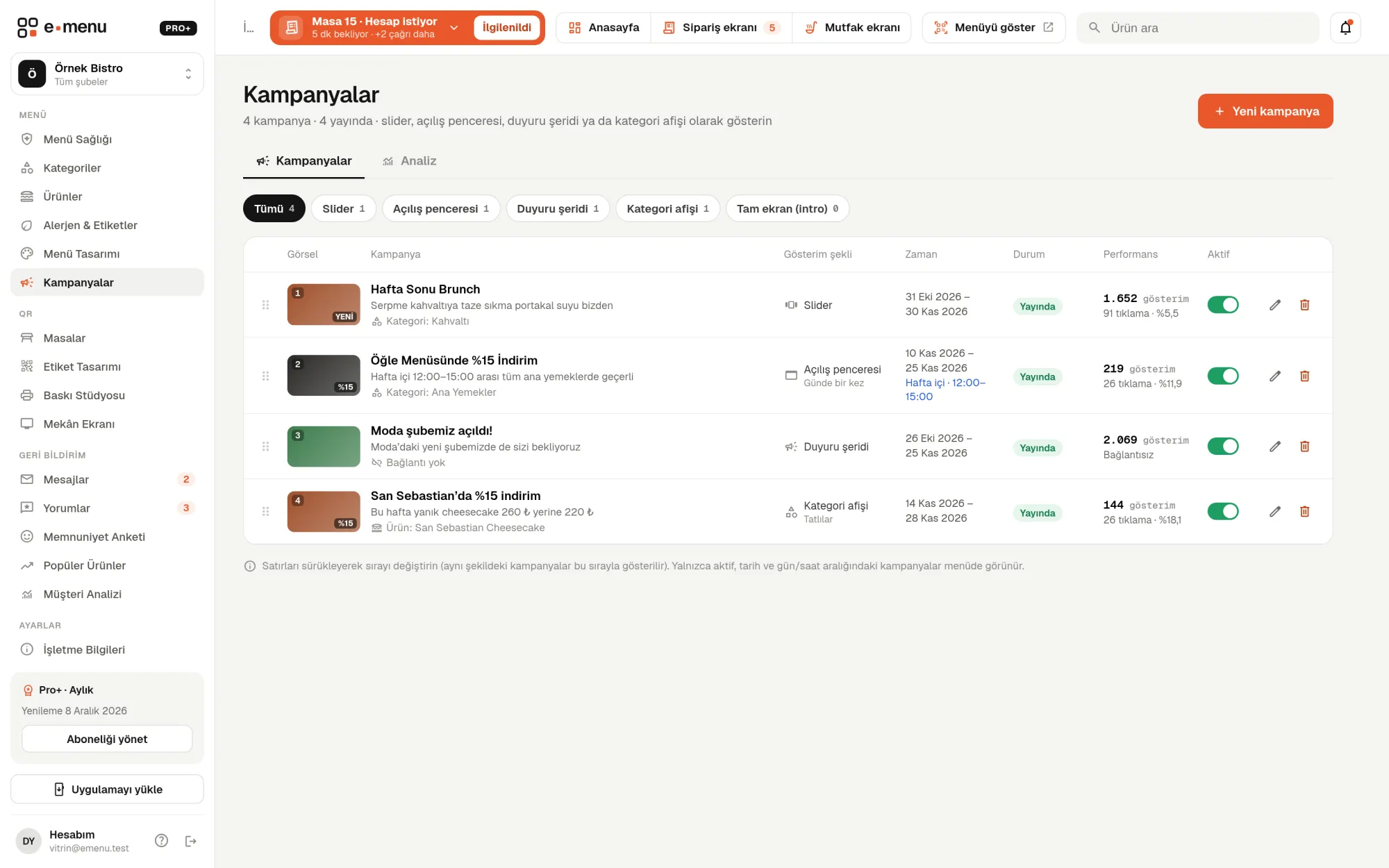
Campaigns · emenu panel screen
lockThis feature is in ProOn the Free plan? Upgrade, or try it free for 14 days with no card.See plans
Overview

What are campaigns?

The Campaigns module lets you show announcements and campaigns on your digital menu. You prepare an image, a title and a short description, and choose where on the menu, on which days and at what times the campaign appears. When guests scan the QR, they see the campaign inside the menu.

Table tents, door posters and social media posts don’t always reach guests looking at the menu. When the campaign is inside the QR menu, guests see it while deciding what to order. If you link the campaign to a product or category, guests get there with one tap.

The module also covers time-limited percentage discounts and the “Deals” page on the menu; your image campaigns also rotate in the TV slides on the Venue Screen. Campaigns are in the Pro plan.

What you can do

Campaigns ile

check_circleSlider, pop-up, announcement bar, category banner, full-screen splash
check_circlePop-up: every visit, once a day or just once
check_circleScheduling by day and time range
check_circleLink to a product or category
check_circleImage studio: drag and drop, paste, aspect ratio warning
check_circleReport: impressions, clicks, click-through rate, reach
check_circleTime-limited discounts: “Deals” page, “-20%” badge, “Last day” notice
How it works

Three steps.

01
Upload your campaign image.
02
Choose the display type and schedule.
03
Track the report.
Details

Campaigns: details

Five display types

For each campaign, you choose how it appears on the menu. You set the order of campaigns of the same type by dragging them in the list. For the pop-up and the full-screen splash, you choose a frequency: every visit, once a day or just once. If you want, the full-screen splash closes by itself after 3, 5 or 8 seconds; guests can always go to the menu with “Skip”.

  • checkSlider: a rotating image banner at the top of the home page
  • checkPop-up: a window that appears in the center when the menu opens
  • checkAnnouncement bar: a thin, dismissible bar on the home page; doesn’t use an image
  • checkCategory banner: at the top of the products in the category you choose
  • checkFull-screen splash: a vertical image covering the whole screen as the menu opens

Scheduling: the right day, the right time

You give the campaign a start and end date. You can also choose days of the week (every day, weekdays, weekends or individual days) and a time range. Only campaigns that are active and within their date and day/time range appear on the menu.

  • checkStatuses: Live, Scheduled, Expired, Inactive, Draft
  • checkExample: a breakfast campaign only on weekdays from 08:00 to 11:00
  • checkPause a campaign with the Active switch without deleting it

Content, button and image studio

You add a title, description, badge and button to the campaign; the button goes to the product or category you choose. The image studio suggests a size based on the display type. Changes are saved as a draft and appear in a preview of your real menu; the menu guests see doesn’t change until you publish.

  • checkReady-made badges: 10%, 15%, 20%, NEW, DEAL, 1+1 or your own text
  • checkDrag and drop the image, select it or paste it with Ctrl+V
  • checkRecommended size: 1200 × 675 (16:9); 1080 × 1920 (9:16) for the full-screen splash
  • checkA warning showing how much of the image will be cropped if the ratio doesn’t fit
  • checkJPG, PNG or WebP, up to 2 MB; a colored background if there’s no image

Time-limited discounts and the Deals page

On the product edit screen, you give a product a sale price and a start–end time. You can also apply a bulk percentage discount to products you select in the product list. When the discount expires, the list price returns to the menu automatically.

  • checkOld price struck through on the menu, with a badge like “-20%” next to it
  • checkDiscounted products are gathered on the menu’s “Deals” page
  • check“Last day” notice on products with an end time
  • checkPer-language prices are discounted by the same rate
  • checkWith table ordering (Pro+), the cart is calculated at the discounted price

Campaign report

The analytics section of the Campaigns page shows how your campaigns performed over the last 7, 30 or 90 days. The list also shows each campaign’s clicks and click-through rate for the last 30 days. The report includes a breakdown by display type and the campaign with the highest click-through rate.

  • checkImpressions: how many times the campaign was shown on the menu (the same visitor counts once per 30 minutes)
  • checkClicks: how many times a linked campaign was tapped
  • checkClick-through rate: clicks as a share of impressions
  • checkReach: number of unique visitors who saw the campaign
  • checkDaily charts for impressions and clicks
In the panel Campaigns3 screens
Campaigns · emenu panel screen
Use cases

Who uses it, and how?

01

Café at breakfast time

A slider scheduled for weekdays 08:00–11:00 shows the breakfast plate at the top of the menu. After 11, the campaign comes down automatically and the menu is ready for lunchtime.

02

Patisserie launching a new product

You announce the new cake with a pop-up and choose “once a day” so the same guest doesn’t see it every time they open the menu. Guests who tap the button go straight to the product’s page.

03

Restaurant running a weekend discount

You set a 15 percent discount on selected products from Friday evening to Sunday night. The old price appears struck through on the menu and the products are gathered on the “Deals” page; when it ends, prices go back automatically.

04

Business testing two display types

You publish one campaign as a slider and another as a category banner. In the report you see their impressions and click-through rates side by side and decide which type to use for your next campaign.

Frequently asked questions

Campaigns : questions

The Pro plan, and Pro+ as well. Time-limited discounts and the “Deals” page are part of the same feature.

Related features

monitoring
Analytics
See what guests do on your menu.
Pro
tv
Venue Screen
A TV slideshow fed by your menu; no extra content to prepare. Your own slides are in Pro.
Free
sentiment_satisfied
Satisfaction survey
Measure what your guests think, NPS included.
Pro
Pro · 99 ₺ / month + VAT

Grow your menu with Pro.

Try free for 14 daysCompare plans