4 question types and 6 ready-made questions
When you first open the survey, it comes with 6 ready-made questions: overall satisfaction, taste, service, value for money, the recommendation question and “Anything you’d like to add”. You can edit them, reorder them, make them required or add new ones. If you delete a question that has answers, it’s archived, so past reports stay intact.
- checkStar (1–5): rating questions such as overall satisfaction, taste, service
- checkRecommendation (0–10): the NPS question
- checkSingle choice: up to 10 options, e.g. “How did you hear about us?”
- checkComment: the guest’s free-form feedback
Where does the survey appear on the menu?
The survey starts switched off; you review the questions and turn it on in the menu with one button. The invitation card asking guests to take the survey can appear in two places, and you can turn each on or off separately. If you use the My own design layout, you can also place the survey block anywhere on the page.
- check“Rate your experience” card on the menu home page
- check“How was your order?” card in order tracking after the order is served (table ordering, Pro+)
- checkSurvey title, intro text and thank-you text in your own words
Anonymous answers, once a day per device
Guests aren’t asked for a name, phone or email; answers are anonymous. One answer per day is accepted from the same device, so no one can submit scores over and over. Once a guest finishes the survey, the invitation card doesn’t appear on the menu again that day.
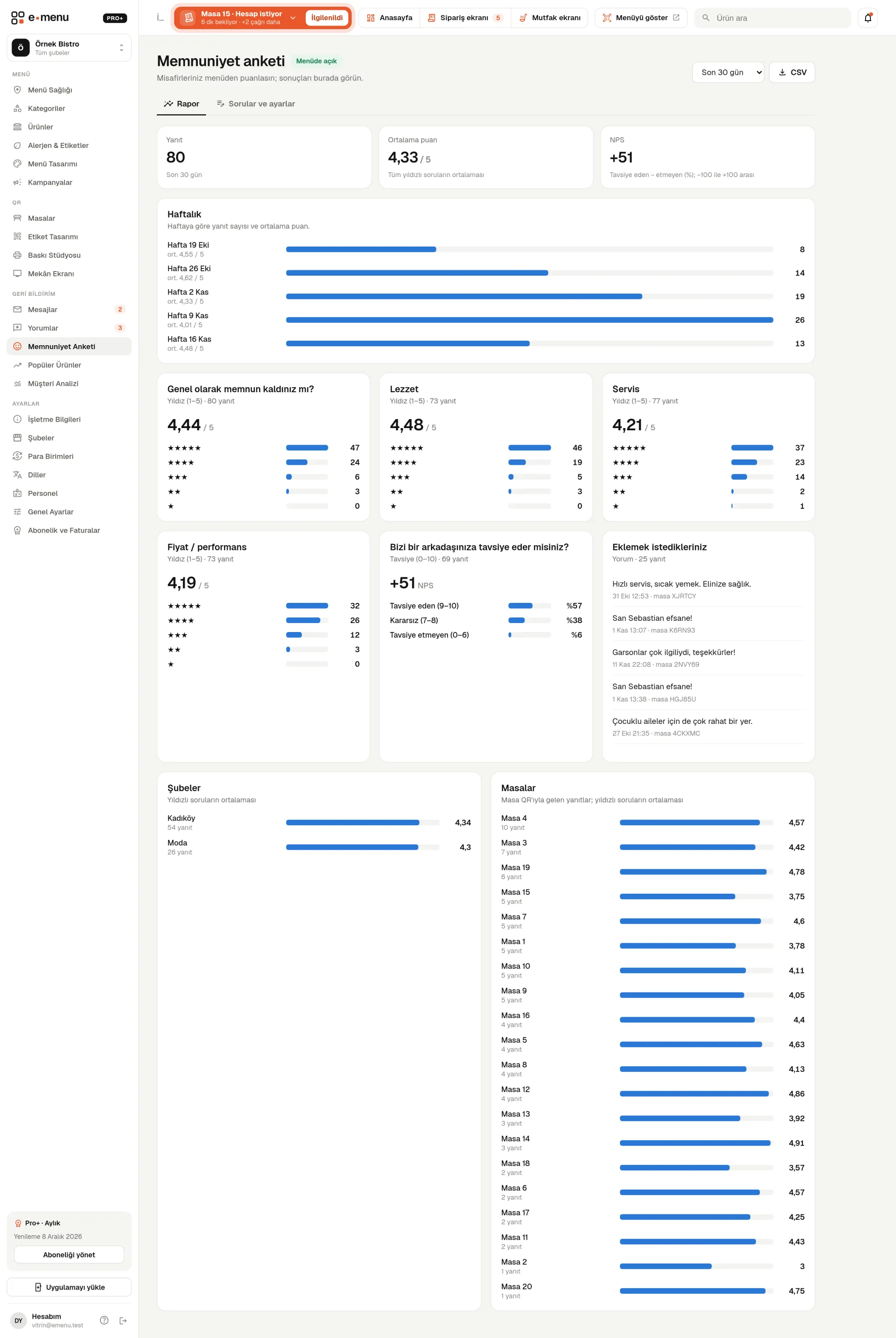
Report: average score, NPS and weekly trend
The survey report in the panel shows the last 7, 14, 30, 90 or 365 days. If you have several branches, you can filter the report by a single branch.
- checkNumber of answers and average score for star questions
- checkNPS: the percentage of 0–6 scores subtracted from the percentage of 9–10 scores
- checkScore or option distribution for each question
- checkWeekly trend: number of answers and average score
- checkBreakdown by branch and table, latest comments
- checkCSV export that opens in Excel: one row per answer, one column per question
Branch-specific questions and question translations
You can ask a question at all branches or only one; guests see the question set of whichever branch they’re at. If your menu has several languages, the survey title, questions and options are translated too. You can translate with one click via DeepL (an automatic translation service) and then correct by hand.