
emenu
Featureschevron_rightOrdering and servicechevron_rightKitchen display
soup_kitchenPro+

Kitchen display

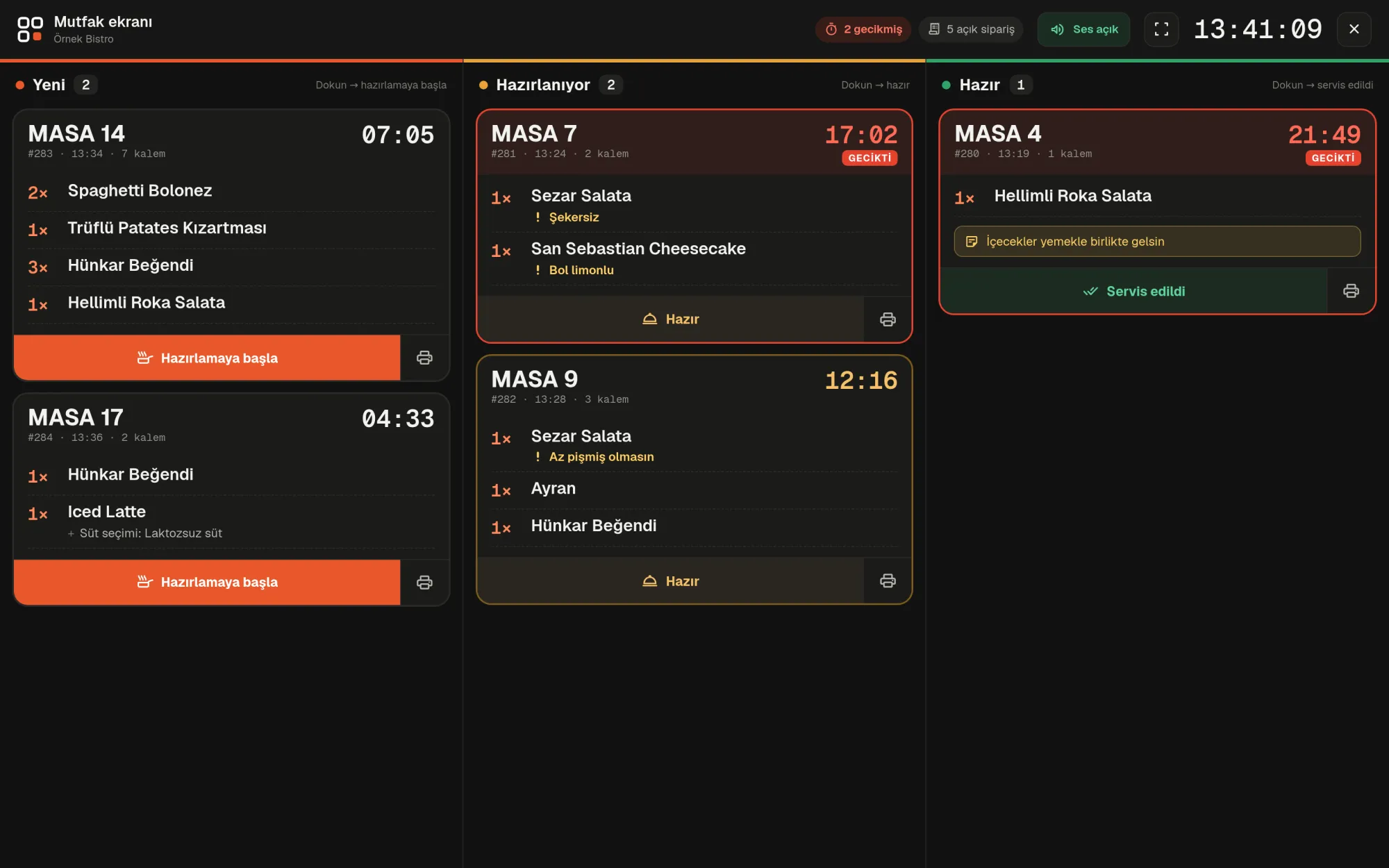
Orders appear full screen in the kitchen, on 3-column cards.

Kitchen display · emenu panel screen
lockThis feature is in Pro+On the Free plan? Upgrade, or try it free for 14 days with no card.See plans
Overview

What is the kitchen display?

The kitchen display is an order tracking screen that shows table orders full screen in the kitchen. It’s also known in the industry as a KDS (kitchen display system). Orders sit as cards in three columns: New, Preparing and Ready; the cook taps a card to move the order to the next stage.

Lost paper tickets, illegible handwriting or “What did this table order?” waste time in the kitchen. On the kitchen display, each card shows the table name, items, quantities, selected product options and the guest’s note in large type. The card changes color the longer an order waits, so delayed orders don’t get missed.

The kitchen display works with table ordering, which lets guests order from the QR menu at the table, and is in the Pro+ plan. You don’t need to install a separate device or program; the screen opens in a browser.

What you can do

Kitchen display ile

check_circleFull-screen, 3-column order cards
check_circleCards are advanced with a tap
check_circleSound alert on new orders
check_circle80 mm thermal ticket layout: kitchen ticket and check
check_circleAutomatic “kitchen ticket on new order” printing
check_circleAutomatic “check when table closes” printing
How it works

Three steps.

01
Open the panel on the kitchen screen.
02
Orders arrive as cards.
03
Tap to move them to Preparing and Ready.
Details

Kitchen display: details

Three columns, cards you advance with a tap

Each column header shows the number of orders at that stage, and cards are lined up in order of arrival. The button at the bottom of a card names the next step. If you tap the wrong card, use “Undo” at the top of the screen within a few seconds.

  • checkNew: tap “Start preparing”
  • checkPreparing: tap “Ready”
  • checkReady: tap “Served”
  • checkTable name, order number, time and item count on the card
  • checkProduct options and item notes on separate lines; order notes in a separate box

Sound alerts and delay tracking

When a new order arrives, the screen sounds a two-tone alert; you turn the sound on and off with the button in the top bar. Each card runs a timer showing how long the order has been waiting.

  • checkA card’s timer turns yellow after 10 minutes
  • checkAfter 15 minutes, a card flashes with a red border and gets a “LATE” label
  • checkNumber of open and late orders in the top bar
  • checkLarge digital clock and full-screen button
  • checkOn narrow screens like tablets, columns become horizontally scrolling strips

80 mm kitchen tickets and checks

Each card has a printer button in its corner. Tickets are formatted for 80 mm thermal printers and print from the browser’s print dialog. The automatic printing setting is stored per device; you turn it on at the computer the printer is connected to.

  • checkKitchen ticket: table name in capitals, quantities, options and notes
  • checkCheck: venue details, items, amounts and total
  • check“Kitchen ticket on new order”: prints automatically when an order is moved to preparing
  • check“Check when table closes”: prints when service is completed on the order screen
  • checkThe check is for information only; it is not a fiscal document

QR and waiter orders on the same screen

Along with orders guests place from the QR menu, orders the waiter sends from the emenu Business mobile app also land on the kitchen display. Items the waiter holds for later don’t appear in the kitchen until they are sent. Orders arrive instantly; if the connection drops, the screen refreshes itself every few seconds. If the same order was updated on another screen, the display warns you.

Kitchen staff and branches

The “Kitchen” role in staff accounts sees only the kitchen display and ticket printing. In a multi-branch business, the screen shows the selected branch’s orders, with the branch name in the top bar. Staff assigned to a branch see only their own branch’s orders.

In the panel Kitchen display3 screens
Kitchen display · emenu panel screen
Use cases

Who uses it, and how?

01

Burger restaurant with an open kitchen

Orders arrive in sequence on the tablet at the counter. The cook sees the “no onions” note highlighted on the card and taps the card once the burger is ready. The order moves to the Ready column, and the waiter takes it out.

02

Busy weekend breakfast

When many tables order at once, the 10- and 15-minute thresholds show by color which table is waiting. The late order count in the top bar lets the head chef see priorities at a glance.

03

Café with a thermal printer

An 80 mm thermal printer is connected to the computer behind the bar, with “Kitchen ticket on new order” turned on. When the barista moves an order to preparing, the ticket appears in the print dialog automatically.

04

Restaurant with two branches

The same screen opens in each branch’s kitchen. Kitchen staff assigned to a branch see only orders for their own branch, so the other branch’s orders don’t clutter the screen.

Frequently asked questions

Kitchen display : questions

The Pro+ plan. It comes with table ordering, the order screen and the emenu Business mobile app.

Related features

room_service
Table ordering
Guests order from the table and track the status on their phone.
Pro+
smartphone
Mobile app
emenu Business: the check in your waiter’s pocket. On Android and iOS, included in Pro+.
Pro+
badge
Staff accounts
Invite your team, and everyone sees only their own work.
Pro
Pro+ · 249 ₺ / month + VAT

From order to service with Pro+.

Try free for 14 daysCompare plans