emenu
Featureschevron_rightGrowth and analyticschevron_rightMultiple branches
account_treePro

Multiple branches

All your branches from one account.

Multiple branches · emenu panel screen
lockThis feature is in ProOn the Free plan? Upgrade, or try it free for 14 days with no card.See plans
Overview

What are multiple branches?

Multiple branches let a business with more than one location manage all its branches from one emenu account. You enter products once; you change the price per branch, hide a product at just one branch, or make a category available at just one branch.

A separate account for each branch means entering the same product again and again and updating each menu one by one when a price changes. In one account, the shared menu is kept and differences are defined only where needed. And guests see the digital menu and prices of whichever branch they’re at.

Multiple branches are available in Pro and Pro+. There is no separate limit on the number of branches.

What you can do

Multiple branches ile

check_circleAll branches are managed from one account
check_circleBranch-specific categories
check_circleBranch-specific product prices and hiding
check_circleBranch selection screen for guests
check_circleStaff assigned to a branch only see their own branch
How it works

Three steps.

01
Add your branches.
02
Set branch-specific prices and categories.
03
Assign staff to branches.
Details

Multiple branches: details

Branch details

You add new branches on the Branches page. Each branch has its own name, address and logo; if the logo is left empty, the business logo is used. You drag branches to reorder them and deactivate them when needed; an inactive branch can’t be selected on the menu.

  • checkBranch name and address
  • checkBranch logo: shown on the branch selection screen and on tickets
  • checkTicket signature: a short note at the bottom of the ticket, e.g. “Enjoy your meal” (tickets are in the Pro+ plan)
  • checkActive or inactive status
  • checkNumber of categories and tables linked to the branch

Branch-specific menu: categories, prices and hiding

You define categories for “All branches” or a single branch. On the product edit page, you can enter a separate price for each branch or hide the product at that branch. At branches where the price is left empty, the main price applies.

  • checkA category shown at only one branch, e.g. a cocktail list just for the beach branch
  • checkA different price at a branch, e.g. a different list price at the mall branch
  • checkHidden products per branch: products not sold at that branch don’t appear on the menu

Which branch’s menu do guests see?

Table QR codes are linked to a branch; when guests scan the QR on the table, the menu opens directly with that branch. Guests arriving via a general QR or link see the branch selection screen first if there are several active branches. The choice is remembered on that phone and not asked again on the next visit.

  • checkTable QR: the branch is selected automatically
  • checkGeneral QR: branch selection screen with logo, name and address
  • checkOpen the selected branch’s menu link from the panel

Branch selector in the panel

With the branch selector in the panel’s side menu, you focus on a single branch. Categories, tables, QR labels and prints, Venue Screen and the satisfaction survey report work based on the selected branch. The order screen and kitchen display (Pro+) and waiter calls are also filtered by the selected branch.

Branch-based staff

When you assign staff to a branch, they see only their own branch’s data in the panel; the branch selector is locked for them. You invite a regional manager or partner who needs to see all branches with “All branches”.

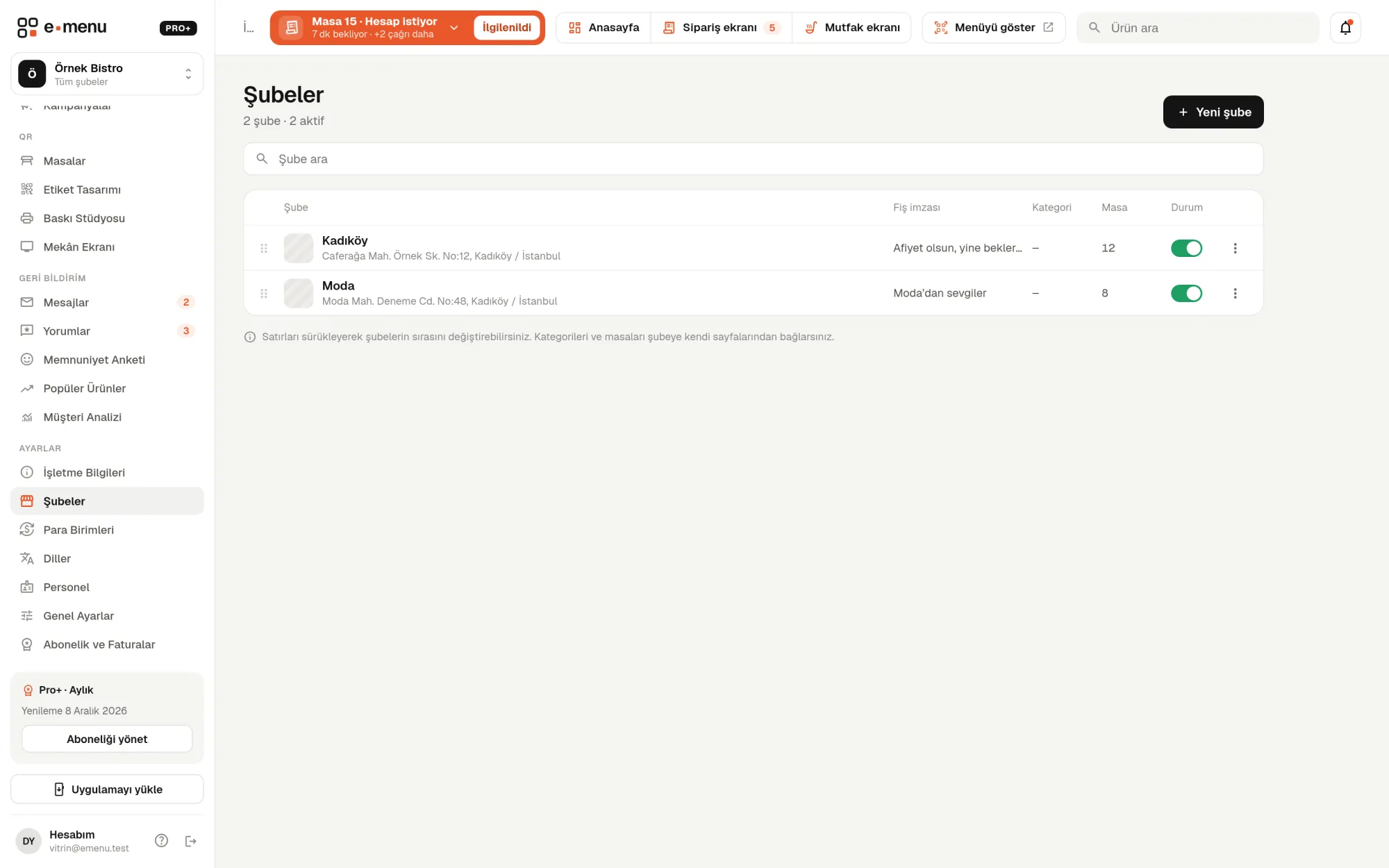
In the panel Multiple branches1 screens
Multiple branches · emenu panel screen
Use cases

Who uses it, and how?

01

Restaurant chain with three branches

The menu is managed from one place. The central and beach branches sell at the same prices, while some products are priced differently at the mall branch. A shared product’s description is corrected once and shows up on every branch’s menu.

02

Café with a beach branch that opens in summer

It defines a cold drinks category just for the beach branch. When the season ends, it deactivates the branch; it can’t be selected on the menu, but its details aren’t deleted, and it reopens the next summer.

03

Hotel restaurant, lobby bar and poolside

Defining these three spots as separate branches, the hotel prints its own table QR codes for each one. Guests see the menu and prices of the spot whose QR they scanned.

04

Patisserie opening its second branch

It doesn’t re-enter its products. It adds the new branch, hides products that won’t be sold there and assigns the till staff only to that branch.

Frequently asked questions

Multiple branches : questions

Pro and Pro+. The Free plan manages a single menu; you can try multiple branches during the free trial too.

Related features

badge
Staff accounts
Invite your team, and everyone sees only their own work.
Pro
currency_exchange
Multiple currencies
Foreign guests see prices in their own language and a currency they know.
Pro
monitoring
Analytics
See what guests do on your menu.
Pro
Pro · 99 ₺ / month + VAT

Grow your menu with Pro.

Try free for 14 daysCompare plans